
Adobe Premiere Pro vs After Effects: Which Should You Learn First
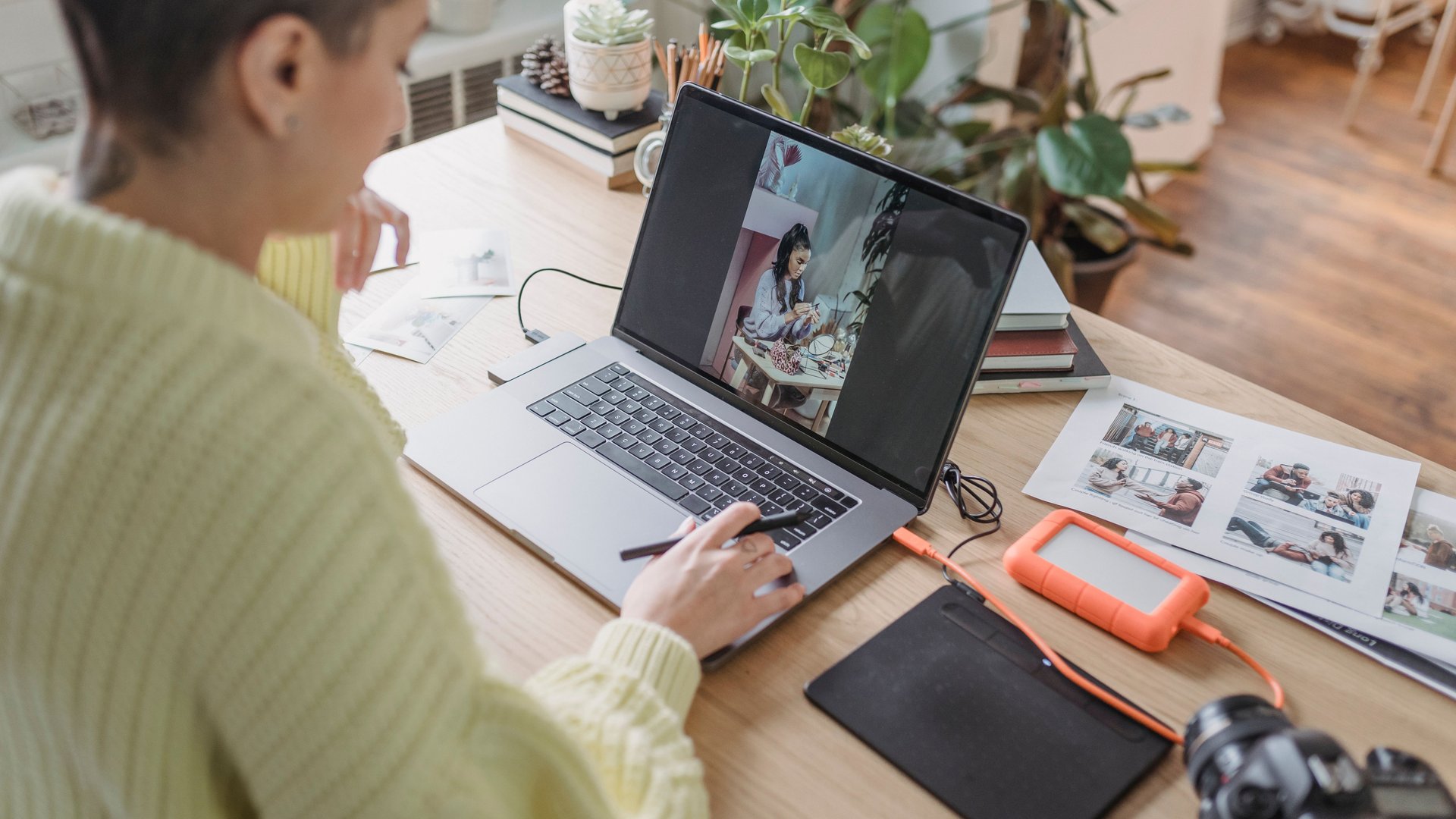
Adobe Premiere Pro and After Effects both live inside Adobe’s video toolkit, and office teams often assume the two programs do the same job. They do not. Premiere Pro cuts, arranges, and finishes raw footage into a finished video. After Effects builds the animated titles, transitions, and effects layered on top of a finished cut. If you produce internal videos, product demos, or social clips for your company, the order you learn these tools in changes how fast you produce usable work.
Browse Adobe desktop training courses to build both skills in a structured classroom setting instead of piecing them together from scattered tutorials.
What Premiere Pro Handles
Premiere Pro works as a non-linear video editor. You import clips, place them on a timeline, and cut, trim, and reorder them until the story holds together. Basic color correction, audio mixing, simple titles, and export settings live inside Premiere Pro as well. Adobe describes it as its professional video editing software, built around assembling and finishing footage rather than generating new visual elements from a blank canvas. Most office video projects start and end inside this single program.
What After Effects Adds
After Effects works differently. Instead of a linear timeline of clips, it stacks layers on top of each other frame by frame, closer to arranging transparent sheets than cutting film. You animate text, build lower-third graphics, add particle effects, and composite green-screen footage. Adobe positions it as its motion graphics software, and most editors treat it as a companion tool rather than a substitute for Premiere Pro.
Which One Fits Your Job First
Your daily tasks decide the order to learn these tools in.
– Premiere Pro first: cutting webinar recordings, trimming training footage, assembling interview clips into a finished piece
– After Effects first: building animated slide graphics, branded intro cards, titles layered onto existing footage
Most office professionals reach for Premiere Pro first, since editing raw footage happens on nearly every video project, while motion graphics work adds polish once the cut is locked in. Learning the timeline, trimming tools, and export settings in Premiere Pro gets you to a finished video fast. After Effects adds a layer of visual detail once you need branded, animated elements beyond plain text titles.
Why Learn Both Together
The two programs share a workflow feature called Dynamic Link. It sends a clip from Premiere Pro directly into After Effects for effects work, then brings it back into your timeline without a separate export step. Teams who use both tools together skip repeated file exports and keep a project inside one connected workflow. Learning Premiere Pro first still makes sense, since a solid grasp of trimming, sequencing, and export settings makes the jump into After Effects layers, keyframes, and compositing tools easier to follow.
Demand for These Skills Inside Office Teams
Video and motion graphics skills continue to spread beyond production studios and into marketing, HR, and communications teams. The Government of Canada Job Bank outlook for video editors shows demand and supply for video editing roles staying broadly balanced across the country through 2033, and companies increasingly want staff on hand able to produce internal video content without outsourcing every project.
Building the Skill Through Structured Training
Self-teaching either program works up to a point, and most learners plateau fast without structured guidance. Formal training compresses months of trial and error into a few focused sessions, covering the tools, shortcuts, and workflows a self-taught path skips over.
Ultimate IT Courses teaches Premiere Pro and After Effects through instructor-led, hands-on training rather than self-paced video tutorials, built around real office tasks rather than abstract design theory. Our Adobe desktop training courses give you direct feedback on your own files rather than a generic tutorial.
Start With the Program Your Work Demands
Neither program replaces the other, and most office professionals end up using both eventually. Start with the one matching your current workload, build confidence there, then add the second program once the first feels comfortable.
Ready to build your Adobe skills? Enroll in a desktop training course at Ultimate IT Courses and start with the program your role uses most.

